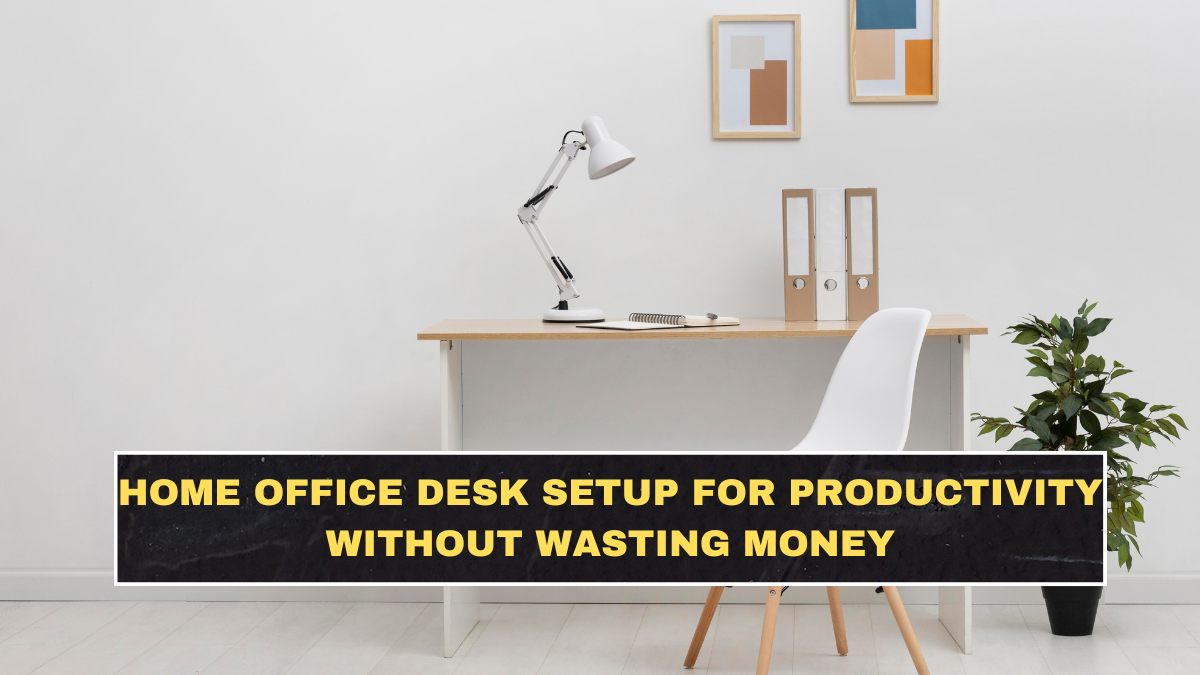
A productive home office is not about copying a Pinterest desk or buying expensive gear you barely use. It is about removing friction. That means sitting in a way your body can tolerate, seeing your screen without craning your neck, and keeping the tools you use most within easy reach. OSHA’s workstation guidance is blunt on this: there is no single perfect setup for everyone, but the goal is to support neutral postures and reduce unnecessary strain. Mayo Clinic gives the same message and adds practical monitor and chair-position guidelines that most people ignore until their neck or back starts complaining.
Why does desk setup affect productivity so much?
Because discomfort is a productivity leak. People like to pretend they can “push through” bad posture, glare, wrist strain, or a laptop setup that forces them to hunch, but those small problems keep pulling attention away from actual work. Stanford’s research on hybrid work found that home working two days a week had zero negative effect on productivity and promotion outcomes in the study, which suggests the home environment can work well when the setup and routines are not sabotaging performance. The problem is not working from home itself. The problem is working from home badly.
What should the first priority be in a home office desk setup?
Start with the chair and screen, not the accessories. If your chair height is wrong and your screen is too low, everything else becomes compensation. Mayo Clinic says your feet should rest flat on the floor, knees should be at or just below hip level, and the top of the screen should sit at or slightly below eye level. It also recommends keeping the monitor roughly 20 to 40 inches from your face. That single adjustment fixes a lot of stupid setups where people work eight hours a day bent over a laptop like they are apologizing to it.
| Setup element | What matters most | Practical fix |
|---|---|---|
| Chair | Feet flat, hips supported, lower back supported | Adjust seat height or add a footrest/cushion |
| Monitor | Top at or slightly below eye level, 20–40 inches away | Use a monitor arm, riser, or even stacked books |
| Keyboard and mouse | Elbow-height, close to body | External keyboard and mouse for laptop users |
| Desk surface | Enough space for neutral arm position | Clear clutter and keep daily tools nearby |
| Lighting | Reduce glare and eye strain | Use side lighting, not harsh screen-facing light |
Is an expensive ergonomic chair actually necessary?
Not always. A good chair helps, but a badly adjusted expensive chair is still a bad chair. OSHA’s guidance focuses more on fit and adjustability than on fancy branding, and Mayo Clinic notes that lumbar support and correct seat height matter more than aesthetics. So before wasting money on a trendy chair, check whether your current one can be adjusted properly. If it cannot, then upgrading makes sense. But too many people skip the free fixes and jump straight to shopping because buying feels easier than thinking.
Should laptop users change anything first?
Yes. If you work for hours on a laptop without an external keyboard and mouse, your setup is probably flawed. The screen ends up too low if your hands are in a decent typing position, or your arms end up too high if the screen is raised. Mayo Clinic and OSHA both point toward neutral positioning, and that is hard to achieve with a laptop alone for full-day work. The cheapest serious productivity upgrade for many people is not a new desk. It is a laptop stand plus an external keyboard and mouse.
How should the desk itself be arranged?
Keep the most-used items in the primary zone directly in front of you or slightly to the side. OSHA’s workstation guidance emphasizes minimizing awkward reach and keeping frequently used tools positioned for comfort. That means your main monitor should be straight ahead, your keyboard directly in front of you, and your mouse close enough that your shoulder is not constantly drifting outward. Desk organization matters because every unnecessary reach, twist, or clutter pile adds mental and physical friction. Productivity is often just reduced annoyance.
Does a standing desk improve productivity automatically?
No. That belief is lazy. A height-adjustable desk can be useful because it gives position variety, but standing all day is not the answer either. OSHA notes that there is no one correct posture for all computer work, and ergonomic experts increasingly repeat the same idea: the best posture is your next posture. In other words, changing position matters more than performing some fantasy of perfect stillness. A sit-stand desk is helpful if it encourages movement, not if it becomes another expensive object you barely adjust.
What role do lighting and visual setup play?
A bigger role than people admit. Poor lighting causes glare, squinting, and eye fatigue, which then becomes headaches and reduced focus. OSHA’s workstation material includes the work environment for a reason. A useful setup keeps bright light from bouncing directly off the screen and avoids harsh contrast between the monitor and the room. Natural light from the side usually works better than a window directly behind or in front of the screen. You do not need a cinematic desk lamp setup. You need to stop fighting your own screen.
What upgrades are actually worth paying for?
The highest-value upgrades are usually the least flashy: a supportive chair if yours is unusable, a monitor riser or arm, an external keyboard and mouse, and possibly a footrest if your feet do not rest flat. After that, a second monitor can help some roles, but only if your workflow really benefits from it. Too many people buy gear before solving posture and placement. That is backwards. The setup that improves productivity is the one that reduces strain and distraction first, not the one that looks expensive on camera.
What does a smart low-cost setup look like?
A smart budget setup is simple: one decent chair, one properly raised screen, one external keyboard and mouse, good lighting, and a clean desk with only essential tools visible. That is enough for many people. If the screen is at the right height, the chair supports you properly, and your hands are not working from a cramped angle, you have already solved most of the problem. Stop assuming productivity requires a premium aesthetic. Most people do not need a designer workspace. They need fewer bad habits built into the desk.
Conclusion?
A productive home office desk setup is mostly about ergonomics and friction reduction, not shopping. Raise the screen, fix the chair height, keep your keyboard and mouse in a neutral position, reduce glare, and stop working from a laptop-only setup if you are doing serious desk work all day. The expensive mistake is buying upgrades before fixing the obvious basics. The real productivity win is a setup your body can tolerate for hours without turning every workday into low-grade physical irritation.
FAQs
What is the best desk setup for productivity?
The best setup is one that supports neutral posture, clear screen viewing, easy reach to tools, and low distraction. That usually means proper chair height, screen height, and a clean work surface.
How high should a monitor be?
Mayo Clinic says the top of the screen should be at or slightly below eye level, and the monitor should be about 20 to 40 inches from your face.
Is a standing desk necessary for home office productivity?
No. It can help with movement and position changes, but it is not automatically necessary or productive for everyone.
What is the cheapest useful desk upgrade?
For many laptop users, it is a laptop stand plus an external keyboard and mouse, because that solves one of the most common posture problems quickly.